GitHub (or GitLab, Bitbucket…) is a hosting service for code repositories built on top of Git. Think of it as Google Drive for code, except instead of just storing files it tracks every change, lets multiple people work on the same codebase without overwriting each other, and serves as a public showcase of what you’ve built.
The basics worth knowing before clicking around:
A repository (“repo”) is a single project: source files, history, branches, issues.
A commit is a snapshot of the repo at a point in time, with a message describing what changed.
A branch is a parallel line of development; the default one is usually main.
A push uploads your local commits to GitHub; a pull downloads remote changes.
This guide gets the account ready, creates a first repo, and sets up SSH keys so you don’t have to type a password every time you push.
Pick a username carefully: it ends up in every URL of every repo (github.com/<username>/<repo>) and is hard to change later.
Verify the email address. The free plan is enough for everything in this guide: unlimited public and private repos.
Optional but worth it: in Settings → Profile add a short bio, a profile picture, and pin a couple of repos when you have them. The profile page becomes a free portfolio.
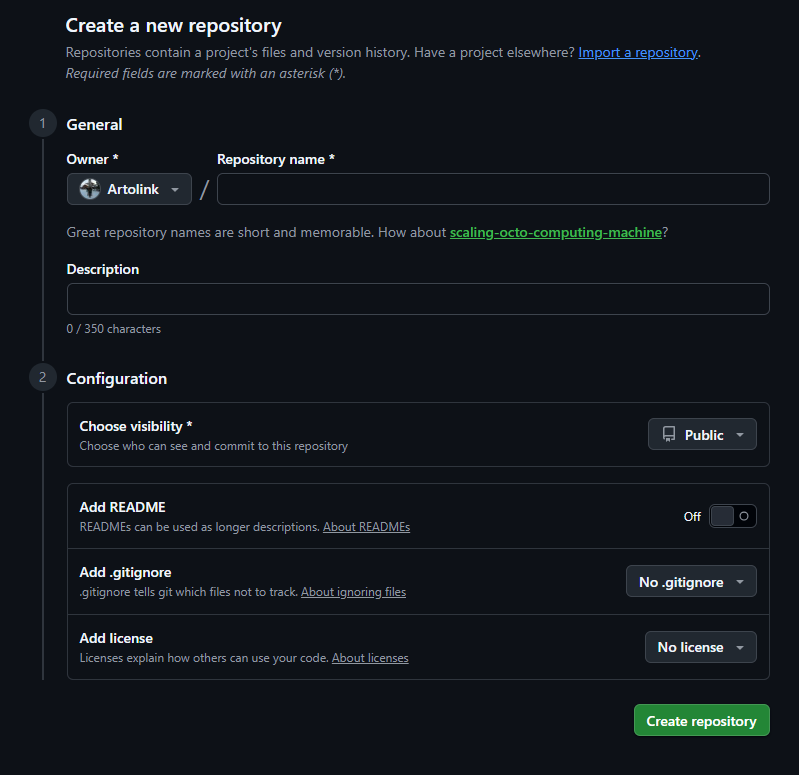
Repository name: keep it short and descriptive. Hyphens are fine, spaces aren’t.
Description: one line, optional but useful.
Public vs Private: see below.
Initialize with README: tick it for a brand-new project; leave it unticked if you already have local files to push (otherwise the first push will conflict).
.gitignore template: pick the one matching the language (Node, Python, …); GitHub adds a sensible default ignore list.
License: only relevant if the repo is public. MIT is the safe default if unsure.
Click Create repository. The repo URL is now https://github.com/<username>/<repo>.
Forking
You can also start by forking a repository, instead of creating one.
A fork is a copy of someone else’s repo under your username. It keeps a link to the original (“upstream”) so updates can be pulled in later.
When to fork, you ask?
When you want to:
Customize a tool/template for personal use (this is what’s done with Quartz to build a wiki like this).
Contribute back to an open-source project: fork, change, open a pull request.
You just need to:
Click Fork top-right on the source repo page.
Pick the destination (your username), optionally rename, Create fork.
Clone the fork as usual: git clone git@github.com:<username>/<repo>.git.
3. Set up SSH access (works for any SSH key access)
By default, Git over HTTPS asks for credentials every time.
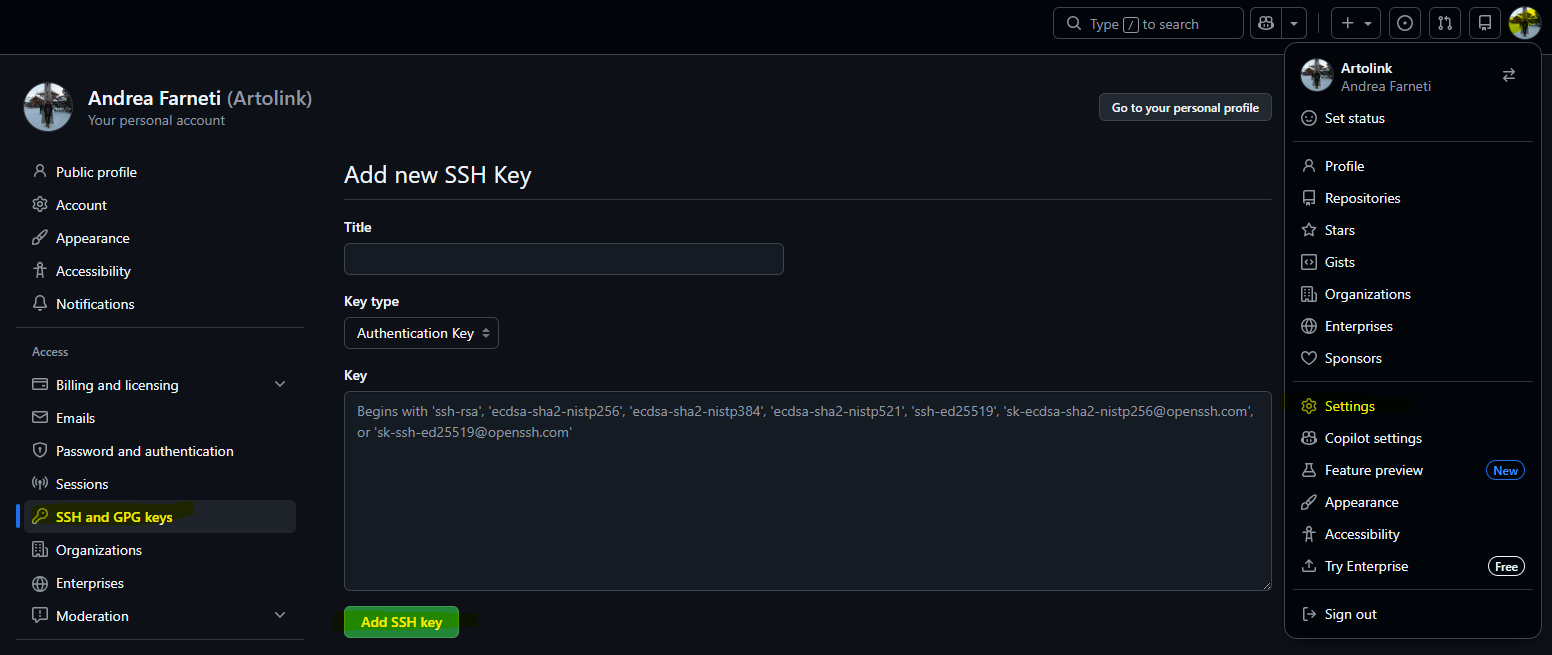
The clean alternative is SSH: generate a key pair once, drop the public key into GitHub, and never type a password again.
1. Generate the key pair
Here’s the procedure:
Generate a key pair
ssh-keygen -t ed25519 -C "<COMMENT>" #The comment is simply a label used to identify the key later. Common conventions are `name@machine` or `service/purpose`
ed25519 vs RSA
Always prefer ed25519 (faster, shorter, safer) over RSA for new keys: RSA still works everywhere but produces much longer keys and is slower.
Only use -t rsa -b 4096 if you have to connect to ancient systems that don’t support ed25519 (very rare today).
When prompted:
File location: accept the default name (~/.ssh/id_ed25519) unless you already have an existing key there. If you use multiple SSH keys, you’ll also need to create a ~/.ssh/config file to explicitly associate each key with a specific hostname (for example, github.com), I’ll show you how to do it in a second.
Passphrase: empty is fine for a personal laptop.
Two files appear:
~/.ssh/id_ed25519: the private key. Never share, never push, never paste anywhere.
~/.ssh/id_ed25519.pub: the public key. This is the one you can give around.
About -C "comment"
The -C flag adds a human-readable comment to the end of the public key. It has no security meaning — it’s a label so you remember whose key this is. Common conventions: name@machine, an email, or service-purpose.
Hi <username>! You've successfully authenticated, but GitHub does not provide shell access.
And if we have multiple keys, we can use the ssh -i option, or set up an alias like this (see the GitHub example):
![[SSH-Linux#aliases-sshconfig|Aliases ~/.ssh/config]]
And then we can try again with ssh -T git@github.com.
4. Your first commit
Pick the SSH URL from the repo page (the Code button → SSH tab).
It looks like git@github.com:<username>/<repo>.git.