
This is a repeatable methodology to inventory, verify and benchmark a Windows PC from BIOS strings to port-by-port testing to thermal stress, and produce a clean acceptance report.
Useful whenever you receive an unknown machine (refurbished purchase, second-hand, fleet handover, customer device) and need to answer one question with evidence: does this hardware do what it claims to do?
Overview
Why audit a PC
Concretely, a structured PC audit lets you:
- Detect silent faults before they bite: a battery at 60 % health, a dead USB port, an SSD with degrading SMART, RAM stuck in single-channel.
- Verify advertised performance: does the i5 actually sustain its boost clock, or is it thermally throttling at 1.2 GHz under load?
- Establish a baseline: useful for later comparisons (driver updates, thermal paste renewal, OS reinstall) and for insurance/warranty disputes.
- Document a refurbished/second-hand purchase: proof that the unit was inspected, with date and measurements, before being put in service.
A good report can also be archived as part of an asset inventory alongside license keys and warranty details.
When to use this methodology
| Scenario | Why it matters |
|---|---|
| 🛒 Refurbished/second-hand purchase | Verify within the return window that the unit matches the listing and is healthy |
| 🏢 Fleet onboarding / handover | Capture the state of the machine when it enters service (lifecycle baseline) |
| 🔧 Pre/post repair | Compare measurements before and after a hardware fix (e.g. thermal paste, SSD swap) |
| 📉 Performance complaint | Replace “feels slow” with numbers: clock under load, SSD latency, battery health |
| 📦 Resale / disposal | Provide a transparent technical sheet to the next owner |
Workflow
flowchart LR
    A[System info] --> B[Components<br>CPU · RAM · SSD · GPU]
    B --> C[Battery health]
    C --> D[Network<br>Wi-Fi · Ethernet · BT]
    D --> E[Port tests<br>USB · USB-C · HDMI · SD · audio]
    E --> F[Synthetic benchmarks<br>winsat · CDM · Cinebench]
    F --> G[Thermal stress<br>10 min full load]
    G --> H[Verdict<br>strengths · concerns · score]
The order matters: discover before you measure, and measure before you stress.
You want to know what you’re stressing, and you want a clean baseline reading before pushing the machine into thermal headroom.
Sections of the report (template)
The example below is structured around eight sections.
Treat them as a checklist: drop or expand sections to fit the machine class (desktop, laptop, mini-PC).
| # | Section | What to capture |
|---|---|---|
| 1 | System summary | Vendor, model, family, SKU, form factor (redact serials) |
| 2 | CPU | Model, generation, cores/threads, base/boost, cache, TDP, socket |
| 3 | RAM | Total, sticks × size, type, speed, channel config |
| 4 | Storage | Drive model, bus (NVMe/SATA), capacity, firmware, SMART health, free space |
| 5 | GPU | Model, VRAM, driver, current resolution |
| 6 | Battery (laptops) | Design vs current full-charge capacity, cycle count, health % |
| 7 | Network | Wi-Fi / Ethernet / Bluetooth — chip, link speed, status (redact MAC and IP) |
| 8 | OS & firmware | Windows edition + build, BIOS/UEFI version + date, security state (VBS, HVCI, Secure Boot, TPM) |
Plus three test sections:
- 🔌 Port matrix: every physical port, with a detection + speed result and a one-line verdict.
- 🧪 Benchmark table: synthetic results (winsat, CrystalDiskMark, Cinebench R23) side by side.
- 🌡️ Thermal stress: sustained-load behaviour (clocks, package temp, SSD temp) over ~10 minutes.
Tools used
| Tool | What it gives you | License |
|---|---|---|
| PowerShell (built-in) | Inventory: hardware, drivers, network, volumes, OS build | Built-in |
winsat (built-in) | WEI scores + raw CPU / RAM / disk / GPU throughput | Built-in (admin) |
powercfg /batteryreport | Battery health report (HTML): design vs full-charge, cycle count | Built-in |
| CrystalDiskMark 9 | Sequential & random SSD throughput at varied queue depths | Free |
| Cinebench R23 | CPU benchmark + 10-minute stress test in one click | Free |
| HWiNFO / HWMonitor | Live sensors: per-core clock, package temp, power, SSD temp | Free |
| Reference USB stick (e.g. Kingston DataTraveler 3.0) | Probe to classify USB ports (USB 3.x ≈ 100 MB/s read vs USB 2.0 ≈ 30 MB/s read) | n/a |
| External monitor + cable | Validate HDMI / DisplayPort / USB-C DP-Alt | n/a |
| Wired headphones + microSD card | Validate the audio combo jack and the card reader | n/a |
TIP
Read raw, not cached. The single most common mistake when measuring storage or USB throughput is reading data that Windows still has in RAM. The numbers come back as multiple GB/s and mean nothing. Always read with
FILE_FLAG_NO_BUFFERING(see the appendix script).
What “good” looks like for each section
- Battery (laptop): > 80 % health and a sane cycle count for the unit’s age. Anything below 70 % is replacement territory.
- SSD: SMART Healthy, sequential read ≥ 1 GB/s for NVMe (≥ 500 MB/s for SATA), no reallocated sectors.
- RAM: matched sticks in dual channel (check
DeviceLocator: different channels). Single-channel cuts bandwidth roughly in half. - CPU sustained: 10-minute Cinebench R23 should hold a multi-core score within ~10 % of the database average for that chip. Big shortfall → thermal throttling or power limit.
- Thermals: package temp under sustained load should stay below TjMax (100 °C on most modern Intel/AMD parts). Hitting TjMax = throttling.
- Ports: every physical port detects a device and delivers its rated speed. A USB-A port that detects but only delivers ~30 MB/s on a USB 3.x stick is wired as USB 2.0 (or the controller is degraded).
Example: Lenovo ThinkPad L14 Gen 1
Acceptance report for a refurbished unit Inspection date: 2026-06-29 · Hostname: [redacted]
System summary
| Field | Value |
|---|---|
| Vendor | LENOVO |
| Model | 20U10028US |
| Family | ThinkPad L14 Gen 1 |
| Type | 14” Notebook (x64) |
| SKU | LENOVO_MT_20U1_BU_Think_FM_ThinkPad L14 Gen 1 |
| Serial number | [redacted] |
| Motherboard S/N | [redacted] |
| Form factor | Portable |
Processor (CPU)
| Field | Value |
|---|---|
| Model | Intel® Core™ i5-10210U |
| Architecture | Comet Lake (10th gen) |
| Cores / Threads | 4 cores / 8 threads |
| Base clock | 1.60 GHz |
| Max turbo | 4.20 GHz (Intel spec) |
| Cache L2 / L3 | 1 MB / 6 MB |
| Socket | U3E1 (BGA, soldered) |
| TDP | 15 W |
RAM
| Field | Value |
|---|---|
| Total installed | 16 GB |
| Configuration | 2 × 8 GB (Dual Channel) |
| Type | DDR4 SODIMM |
| Speed | 3200 MT/s |
| Module vendor | Samsung |
| Part number | M471A1K43DB1-CWE |
| Slots | ChannelA-DIMM0 · ChannelB-DIMM0 |
Storage (SSD)
| Field | Value |
|---|---|
| Model | Micron MTFDHBA256TDV (2300 series) |
| Type | NVMe SSD (M.2) |
| Capacity | 256 GB (238.5 GB usable) |
| Bus | NVMe / PCIe |
| Firmware | 3011P4LN |
| Health | ✅ Healthy |
| Partitions | 3 |
Volume C: usage
| Volume | Total | Free | Used |
|---|---|---|---|
C: (NTFS) | ≈ 236.7 GB | ≈ 180.3 GB | ≈ 56.4 GB (24 %) |
GPU
| Field | Value |
|---|---|
| Model | Intel® UHD Graphics (integrated) |
| VRAM | 1 GB (shared) |
| Driver | 31.0.101.2137 |
| Current resolution | 1920 × 1080 (Full HD) |
Battery
| Field | Value |
|---|---|
| Part number | 5B10W13896 |
| Design capacity | 45,730 mWh |
| Full-charge capacity | 44,400 mWh |
| Cycle count | 16 |
| Battery health | ✅ 97.1 % (excellent) |
| Charge at inspection | 99 % (on AC) |
💡 97 % health with only 16 charge cycles indicates a battery that is effectively new — a strong signal of high-quality refurbishment.
Network and connectivity
| Interface | Device | Status |
|---|---|---|
| Wi-Fi | Intel® Wi-Fi 6 AX200 160MHz | ✅ Connected (144.4 Mbps) |
| Ethernet | Intel® Ethernet Connection (10) I219-V | ✅ Connected (1 Gbps) |
| Bluetooth | Bluetooth Device (PAN) | ⚪ Disconnected |
- Wi-Fi 6 (802.11ax) + integrated Bluetooth
- MAC addresses and current IP redacted
Operating system and firmware
| Field | Value |
|---|---|
| OS | Windows 11 Pro |
| Version | 25H2 |
| Build | 26200.8737 |
| Install date | 2026-06-22 |
| Language / locale | Italian (it-IT) |
| BIOS/UEFI | LENOVO R17ET45W (v1.28) |
| BIOS date | 2026-04-13 |
| Security | VBS on · HVCI on · App Control for Business (enforced) |
Port and peripheral tests
Connectivity probe performed with a Kingston DataTraveler 3.0 USB stick (USB 3.0). Uncached read throughput reflects the real port class: ≈100 MB/s = USB 3.x · ≈30–35 MB/s = USB 2.0. Write ~8 MB/s is the stick’s own ceiling, not the port.
| # | Port | Type | Detected | Read | Verdict |
|---|---|---|---|---|---|
| 1 | USB-A left | USB-A 3.2 Gen 1 | ✅ Yes | 99.7 MB/s | ✅ USB 3.x OK |
| 2 | USB-A right (Always-On) | USB-A 3.2 Gen 1 | ✅ Yes | 100 MB/s | ✅ USB 3.x OK |
| 3 | USB-C (data) | USB-C 3.2 Gen 1 | ✅ Yes | 94.9 MB/s | ✅ USB 3.x OK |
| 4 | USB-C (charging / PD) | USB-C 3.2 Gen 1 | ✅ Yes | 95.5 MB/s | ✅ USB 3.x + charging OK |
| 5 | HDMI | HDMI 1.4b | ✅ Passed | video OK | ✅ External monitor via HDMI: EDID read + image confirmed on screen |
| 6 | microSD reader | microSD (SD bus) | ✅ Yes | n/a | ✅ Reader OK: 2 GB FAT card mounted and Healthy (the first card tried was genuinely defective) |
| 7 | Ethernet RJ-45 | Gigabit | ✅ Passed | 1 Gbps | ✅ Link up at 1 Gbps, DHCP lease obtained from router |
| 8 | 3.5 mm audio jack | Combo headset/mic | ✅ Passed | OK | ✅ Output confirmed by listening; jack detects insertion; external mic recognised as active endpoint |
Port test result: 8/8 verified and working ✅: 2× USB-A and 2× USB-C at full USB 3.x speed, microSD reader, audio jack, HDMI (external monitor) and Gigabit Ethernet all confirmed.
Benchmarks and tests
Benchmarks run on 2026-06-29 / 2026-06-30: built-in Windows tools (
winsat) + CrystalDiskMark 9, Cinebench R23, HWMonitor / HWiNFO.
| Test | Tool | Result | Note |
|---|---|---|---|
| CPU multi-thread | winsat | AES256 2950 · SHA1 2054 · Vista-compr. 714 · LZW 253 MB/s | WEI CPU 8.9 |
| CPU single-thread | winsat | AES256 612 · SHA1 376 · LZW 61 MB/s | i5-10210U 4C/8T |
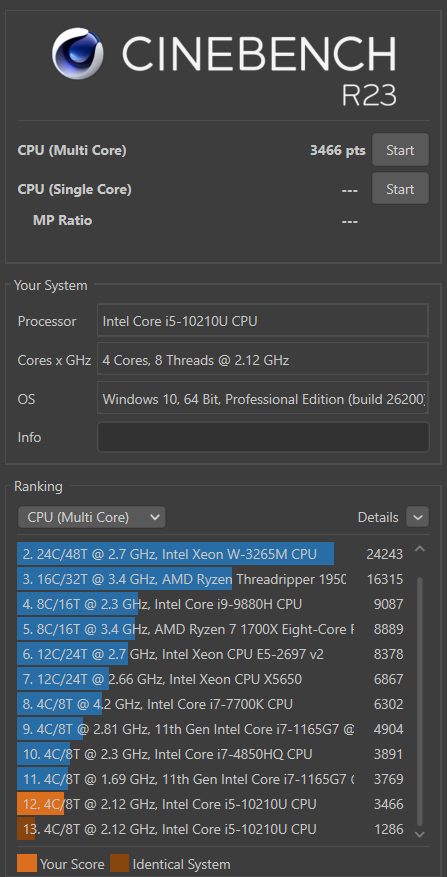
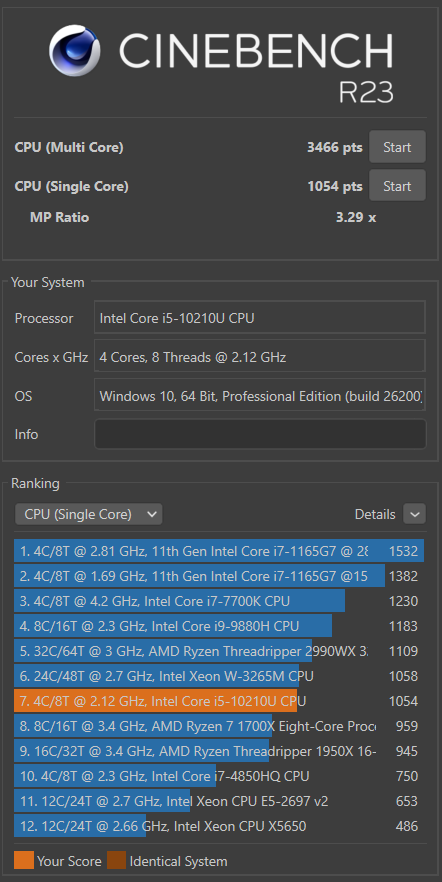
| CPU Cinebench R23 multi-core | Cinebench R23 | 3466 pts | ✅ Strong for i5-10210U (typical 2500–2900) |
| CPU Cinebench R23 single-core | Cinebench R23 | 1054 pts (MP ratio 3.29×) | ✅ Within norm |
| SSD read | winsat | Sequential 2339 MB/s · Random 16K 850 MB/s | WEI Disk 8.9 |
| SSD write | no-admin test (1 GB) | Sequential 891 MB/s | single-thread, realistic value |
| RAM bandwidth | winsat | 19,918 MB/s (~19.9 GB/s) | WEI Mem 8.9 · DDR4-3200 dual channel |
| GPU Intel UHD | winsat | Desktop/DWM WEI 6.5 · D3D 9.9 · video mem 7581 MB/s | integrated |
| WEI base score | winsat | 6.5 | capped by integrated GPU (CPU/RAM/SSD all 8.9) |
| Thermal stress test | Cinebench R23 10 min + HWiNFO | ✅ Stable · CPU ~3.0–3.2 GHz · peak 95 °C | see 🌡️ |
SSD detail: CrystalDiskMark 9
| Pattern | Read | Write |
|---|---|---|
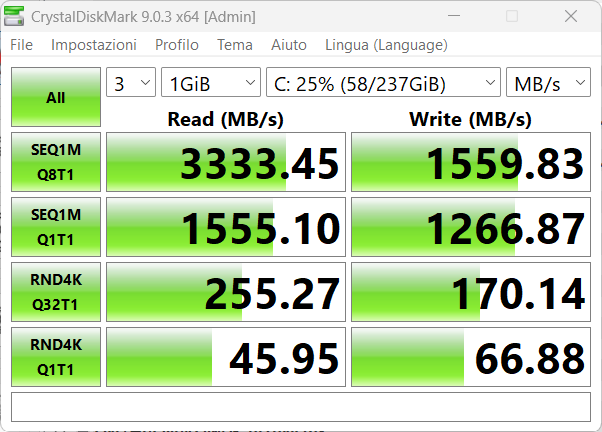
| SEQ1M Q8T1 | 3,333.45 MB/s | 1,559.83 MB/s |
| SEQ1M Q1T1 | 1,555.10 MB/s | 1,266.87 MB/s |
| RND4K Q32T1 | 255.27 MB/s | 170.14 MB/s |
| RND4K Q1T1 | 45.95 MB/s | 66.88 MB/s |
Peak sequential read 3,333 MB/s at deep queue (Q8): consistent with and exceeding the winsat figure (2,339 MB/s, shallow queue). Sequential write ~1,560 MB/s. Excellent values for an NVMe drive of this class (Micron 2300).
CrystalDiskMark screenshot (SSD result):
Thermal stress test: Cinebench R23
✅ CPU healthy: HWiNFO log, 36 samples under full load:
🌡️ Test conditions (severe): ~33 °C ambient (very warm room), no extra cooling, laptop flat on the desk, no riser. In a cooler room and with a ventilated base the temperatures would be noticeably lower — so the 95 °C below is a good result for the context.
| Parameter | Under load | Peak |
|---|---|---|
| All-core clock | ~3.0–3.2 GHz | 3.3 GHz |
| CPU package temperature | ~91 °C | 95 °C |
| Core temperature (avg) | ~87 °C | 92 °C |
| SSD temperature | ~45 °C | 52 °C |
Under sustained load the CPU holds ~3.0–3.2 GHz on all cores: a strong result for a 15 W i5-10210U, with temperatures peaking at 95 °C but staying below TjMax (100 °C). The confirmation is Cinebench R23 Multi-Core 3466 pts, fully in line with the part.
📌 CPU conclusion: the hardware works correctly and performs as it should (3,466 pts, ~3.2 GHz sustained).
Cinebench R23 screenshots:
Multi-Core 3466 pts:
Multi-Core 3466 + Single-Core 1054 (MP ratio 3.29×):
Acceptance checklist
- Hardware inventory complete
- SSD health verified (Healthy)
- Battery health verified (97.1 %)
- Performance benchmarks: CPU, RAM, SSD, GPU (winsat) + SSD write
- Stress test (Cinebench 10 min): system stable; CPU healthy at ~3.2 GHz / 95 °C → 3466 pts
- USB-A ×2, USB-C ×2, microSD, audio jack verified: OK
- HDMI and Ethernet verified: ✅ OK (external monitor via HDMI · Gigabit Ethernet at 1 Gbps)
Final remarks
Overall verdict: excellent refurbished unit, approved. The ThinkPad L14 Gen 1 passes the audit with very good results.
Strengths
- 🔋 Battery as good as new: 97.1 % health with only 16 charge cycles.
- 💾 Excellent NVMe SSD: 3,333 / 1,560 MB/s sequential read/write, Healthy status.
- 🧠 Healthy and performant CPU: Cinebench R23 3,466 pts multi / 1,054 pts single, ~3.2 GHz sustained under load.
- 🧩 Optimal RAM: 16 GB DDR4-3200 in dual channel (~19.9 GB/s).
- 🔌 Ports: 8/8 tested, all OK (USB-A ×2 and USB-C ×2 USB 3.x, microSD reader, audio jack, HDMI with external monitor, Gigabit Ethernet at 1 Gbps).
- 🪟 Software: Windows 11 Pro 25H2, security stack (VBS / HVCI / Secure Boot) active.
Things to watch
- 🌡️ Temperatures under full load: up to 95 °C, but the test was run in harsh conditions (~33 °C ambient, very warm room, no extra cooling, laptop flat on the desk without a riser): in normal conditions, expect lower values. Still under the 100 °C limit; for more headroom, a thermal-paste renewal can be considered.
All tests completed
- 🟢 HDMI (external monitor) and 🟠 Gigabit Ethernet: verified and working. No test deferred.
Judgement
Solid, reliable hardware with good performance for the category (14” business ultrabook). No blocking defect found: purchase approved. ✅
Final score
Per-component rating (0 to 10 scale):
| Component | Score |
|---|---|
| 🔋 Battery | 9.5 |
| 💾 NVMe SSD | 9.5 |
| 🔌 Ports and connectivity | 10 |
| 🧩 RAM | 9 |
| 🧠 CPU | 8 |
| 🌡️ Thermal behaviour | 7.5 |
| 🎨 GPU (Intel UHD integrated) | 4.5 |
🟦 Overall score, GPU included: 7.5 / 10
Rated as a general-purpose machine (with the GPU weighted as a primary capability axis, not just a component average): the integrated GPU is the real bottleneck and rules out gaming and accelerated editing / 3D. Still a decent all-rounder, but not a “complete” machine.
🟩 Score for intended use (office and productivity, GPU excluded): 8.9 / 10 (≈ 9/10)
For browsing, Office, multitasking and day-to-day work the GPU doesn’t matter: CPU, RAM, SSD, battery and connectivity are all high quality. For that use case, an excellent purchase.
Commands used
PowerShell commands (Windows 11). Open PowerShell and paste them. 🔒 = requires PowerShell launched as administrator. This section is updated each time a new test is run.
System information
# General overview (OS, model, BIOS, RAM, network)
systeminfo

# Model / vendor / total RAM
Get-CimInstance Win32_ComputerSystem | Format-List Manufacturer,Model,SystemFamily,TotalPhysicalMemory

# CPU (cores, threads, clock, cache)
Get-CimInstance Win32_Processor | Format-List Name,NumberOfCores,NumberOfLogicalProcessors,MaxClockSpeed,L2CacheSize,L3CacheSize

# RAM modules (slots, speed, dual channel)
Get-CimInstance Win32_PhysicalMemory | Format-Table Manufacturer,PartNumber,Capacity,Speed,DeviceLocator -AutoSize

# Physical disks
Get-CimInstance Win32_DiskDrive | Format-List Model,InterfaceType,Size,MediaType,SerialNumber,FirmwareRevision
Get-PhysicalDisk | Format-Table FriendlyName,MediaType,BusType,HealthStatus

# GPU
Get-CimInstance Win32_VideoController | Format-List Name,AdapterRAM,DriverVersion,CurrentHorizontalResolution,CurrentVerticalResolution

# Motherboard and BIOS/UEFI
Get-CimInstance Win32_BaseBoard | Format-List Manufacturer,Product,SerialNumber,Version
Get-CimInstance Win32_BIOS | Format-List Manufacturer,SMBIOSBIOSVersion,ReleaseDate,SerialNumber

# Network adapters
Get-NetAdapter | Format-Table Name,InterfaceDescription,MacAddress,LinkSpeed,Status -AutoSize

# Volumes and free space
Get-Volume | Format-Table DriveLetter,FileSystemLabel,FileSystem,HealthStatus,SizeRemaining,Size -AutoSize

# Exact Windows version (e.g. 25H2 + build)
Get-ItemProperty 'HKLM:\SOFTWARE\Microsoft\Windows NT\CurrentVersion' |
  Select-Object ProductName,DisplayVersion,CurrentBuildNumber,UBR
Battery (health and charge cycles)
# Official Windows report: Design Capacity, Full Charge Capacity, Cycle Count
powercfg /batteryreport /output "$env:USERPROFILE\Desktop\battery-report.html"
# Open the generated HTML and read the "Installed batteries" section

# Full-charge capacity via WMI (mWh)
(Get-CimInstance -Namespace ROOT\WMI -ClassName BatteryFullChargedCapacity).FullChargedCapacity
TPM and Secure Boot
Get-Tpm                  # 🔒 TPM status
Confirm-SecureBootUEFI   # 🔒 returns True/False
USB ports: detection and speed
# USB controllers present
Get-CimInstance Win32_USBController | Select-Object Name

# Detection: run BEFORE and AFTER plugging the device, then compare
Get-PnpDevice -PresentOnly -Class USB | Select-Object FriendlyName,InstanceId
Port speed: use the usb-bench.ps1 script (section H). Key rule: read uncached (FILE_FLAG_NO_BUFFERING), otherwise Windows serves the data from RAM and reports fake multi-GB/s numbers. Rule of thumb with a USB 3.0 stick: read ≈100 MB/s = USB 3.x port, ≈30–35 MB/s = USB 2.0 port.
microSD reader
# Card reader controller
Get-PnpDevice -PresentOnly | Where-Object FriendlyName -match 'SD|Card|Reader|Realtek'
# Disk and volume of the inserted card
Get-Disk   | Where-Object BusType -eq 'SD'
Get-Volume | Where-Object DriveType -eq 'Removable'
Combo audio jack
# Audio endpoints: plug headphones in and watch a "2nd output" / "External Mic" appear
Get-PnpDevice -Class AudioEndpoint | Select-Object Status,FriendlyName

# Sound test on the default output
(New-Object System.Media.SoundPlayer "C:\Windows\Media\tada.wav").PlaySync()
[console]::beep(880,400); [console]::beep(660,400); [console]::beep(988,600)
Performance benchmarks
WEI / winsat (CPU, RAM, disk, graphics): 🔒 admin required:
# Full assessment: prints raw MB/s for CPU, memory, disk, graphics
winsat formal

# Or single sub-tests:
winsat disk      # 🔒 SSD/HDD
winsat mem       # 🔒 memory bandwidth
winsat dwm       # 🔒 desktop graphics

# Synthetic WEI scores (1.0–9.9):
Get-CimInstance Win32_WinSAT |
  Format-List CPUScore,MemoryScore,DiskScore,GraphicsScore,D3DScore,WinSPRLevel
SSD write without admin: writes 1 GB, measures sequential write + uncached read (deletion uses [IO.File]::Delete because some environments block Remove-Item on system paths):
$SizeMB = 1024; $path = "$env:TEMP\__disk_bench.bin"
$buf = New-Object byte[] (1MB); (New-Object Random).NextBytes($buf)
$fs=[IO.File]::Create($path); $sw=[Diagnostics.Stopwatch]::StartNew()
for($i=0;$i -lt $SizeMB;$i++){$fs.Write($buf,0,1MB)}; $fs.Flush($true); $sw.Stop(); $fs.Close()
$w=[math]::Round($SizeMB/$sw.Elapsed.TotalSeconds,1)
$align=4096; $NO=0x20000000; $over=New-Object byte[] (1MB+$align)
$h=[Runtime.InteropServices.GCHandle]::Alloc($over,'Pinned')
$b=$h.AddrOfPinnedObject().ToInt64(); $o=[int]((($align-($b%$align))%$align))
$fs=New-Object IO.FileStream($path,[IO.FileMode]::Open,[IO.FileAccess]::Read,[IO.FileShare]::None,1MB,[IO.FileOptions]$NO)
$sw2=[Diagnostics.Stopwatch]::StartNew(); $r=0
while($r -lt $SizeMB*1MB){$n=$fs.Read($over,$o,1MB); if($n -le 0){break}; $r+=$n}
$sw2.Stop(); $fs.Close(); $h.Free()
$rd=[math]::Round($SizeMB/$sw2.Elapsed.TotalSeconds,1)
[System.IO.File]::Delete($path)
"SSD: Write $w MB/s | Read (uncached, queue 1) $rd MB/s"
Note: shallow-queue read under-states NVMe drives; for peak sequential read refer to
winsat disk(it uses deep I/O queues).
Sustained CPU (Cinebench R23) + thermal stress
- Cinebench R23 → CPU (Multi Core) button → Start (runs ~10 min: CPU benchmark + thermal stress in one).
- During the test, monitor temperature / power / clock with HWMonitor (CPUID) or HWiNFO (CPU Temperatures and Powers sections).
- Live CPU clock via PowerShell (language-independent, no admin):
$pi = Get-CimInstance Win32_PerfFormattedData_Counters_ProcessorInformation -Filter "Name='_Total'"
"Effective clock ~ $([math]::Round(1.6 * $pi.PercentProcessorPerformance / 100, 2)) GHz (base 1.6)"- Power source and active plan:
(Get-CimInstance Win32_Battery).BatteryStatus   # 2 = mains (AC), 1 = battery
powercfg /getactivescheme
Full support scripts
usb-bench.ps1 — measures a USB stick’s speed (write + uncached read):
param([int]$SizeMB = 200)
$ErrorActionPreference = 'Stop'

$usbDisk = Get-Disk | Where-Object BusType -eq 'USB' | Select-Object -First 1
if (-not $usbDisk) { Write-Host "No USB disk detected." -ForegroundColor Red; return }
$part = Get-Partition -DiskNumber $usbDisk.Number | Where-Object DriveLetter | Select-Object -First 1
if (-not $part) { Write-Host "USB disk has no drive letter." -ForegroundColor Red; return }
$dl = $part.DriveLetter
$path = "${dl}:\__bench_tmp.bin"

$buf = New-Object byte[] (1MB); (New-Object Random).NextBytes($buf)

# WRITE (with flush to disk)
$fs = [System.IO.File]::Create($path)
$sw = [Diagnostics.Stopwatch]::StartNew()
for ($i=0; $i -lt $SizeMB; $i++) { $fs.Write($buf,0,1MB) }
$fs.Flush($true); $sw.Stop(); $fs.Close()
$writeMBps = [math]::Round($SizeMB / $sw.Elapsed.TotalSeconds, 1)

# READ uncached (FILE_FLAG_NO_BUFFERING = 0x20000000)
$align = 4096; $NO_BUF = 0x20000000
$over = New-Object byte[] (1MB + $align)
$h = [Runtime.InteropServices.GCHandle]::Alloc($over, 'Pinned'); $uncached = $true
try {
    $base = $h.AddrOfPinnedObject().ToInt64()
    $off  = [int]((($align - ($base % $align)) % $align))
    $fs = New-Object IO.FileStream($path,[IO.FileMode]::Open,[IO.FileAccess]::Read,[IO.FileShare]::None,1MB,[IO.FileOptions]$NO_BUF)
    $sw2 = [Diagnostics.Stopwatch]::StartNew(); $read = 0
    while ($read -lt $SizeMB*1MB) { $n = $fs.Read($over,$off,1MB); if ($n -le 0){break}; $read += $n }
    $sw2.Stop(); $fs.Close()
    $readMBps = [math]::Round($SizeMB / $sw2.Elapsed.TotalSeconds, 1)
} catch {
    $uncached = $false
    $sw2 = [Diagnostics.Stopwatch]::StartNew()
    $fs = [System.IO.File]::OpenRead($path); $rb = New-Object byte[] (4MB)
    while (($n = $fs.Read($rb,0,$rb.Length)) -gt 0) {}
    $sw2.Stop(); $fs.Close()
    $readMBps = [math]::Round($SizeMB / $sw2.Elapsed.TotalSeconds, 1)
} finally { $h.Free() }
Remove-Item $path -Force

Write-Host ("Drive {0}:  Write {1} MB/s  |  Read {2} MB/s" -f $dl,$writeMBps,$readMBps) -ForegroundColor Green
port-test.ps1 — before/after device comparison (USB, disks, monitors, audio, network). Save the file and run it once to create the baseline, then again after plugging the device in:
param([string]$Label = "")
$ErrorActionPreference = 'SilentlyContinue'
$stateFile = Join-Path $PSScriptRoot 'port-baseline.json'

function Get-State {
    $usb   = Get-PnpDevice -PresentOnly -Class USB           | Select-Object FriendlyName, InstanceId
    $disk  = Get-Disk                                        | Select-Object Number, FriendlyName, SerialNumber, BusType
    $mon   = Get-PnpDevice -PresentOnly -Class Monitor       | Select-Object FriendlyName, InstanceId
    $audio = Get-PnpDevice -PresentOnly -Class AudioEndpoint | Select-Object FriendlyName, InstanceId
    $net   = Get-NetAdapter | Select-Object Name, Status, LinkSpeed, MacAddress
    [pscustomobject]@{ usb=@($usb); disk=@($disk); mon=@($mon); audio=@($audio); net=@($net) }
}
$new = Get-State
if (-not (Test-Path $stateFile)) {
    $new | ConvertTo-Json -Depth 6 | Set-Content $stateFile -Encoding UTF8
    Write-Host "BASELINE saved. Plug in a device and run again." -ForegroundColor Cyan; return
}
$old = Get-Content $stateFile -Raw | ConvertFrom-Json
Write-Host ("===== PORT TEST: {0} =====" -f $Label) -ForegroundColor Yellow
foreach ($cat in 'usb','mon','audio') {
    $added = @($new.$cat) | Where-Object { $_.InstanceId -and ($_.InstanceId -notin (@($old.$cat).InstanceId)) }
    foreach ($a in $added) { Write-Host ("  [+] {0}: {1}" -f $cat.ToUpper(), $a.FriendlyName) -ForegroundColor Green }
}
$addedDisk = @($new.disk) | Where-Object { $_.SerialNumber -and ($_.SerialNumber -notin (@($old.disk).SerialNumber)) }
foreach ($d in $addedDisk) { Write-Host ("  [+] STORAGE: {0} | Bus={1}" -f $d.FriendlyName,$d.BusType) -ForegroundColor Green }
foreach ($n in @($new.net)) {
    $o = @($old.net) | Where-Object { $_.MacAddress -eq $n.MacAddress } | Select-Object -First 1
    if ($o -and $o.Status -ne $n.Status) { Write-Host ("  [~] RETE: {0} {1}->{2} ({3})" -f $n.Name,$o.Status,$n.Status,$n.LinkSpeed) -ForegroundColor Green }
}
$new | ConvertTo-Json -Depth 6 | Set-Content $stateFile -Encoding UTF8
TIP
Reproducibility. Store the resulting
.mdalongside thebattery-report.html, the CrystalDiskMark screenshot and the HWiNFO log in a folder named after the unit (e.g.audit-2026-06-29-thinkpad-l14/). The next time you touch the machine, a 5-minute re-run of the same commands tells you if anything has degraded.