
Why do we edit the hosts file?
The hosts file (C:\Windows\System32\drivers\etc\hosts) is a plain-text mapping IP → hostname that the OS checks before going to DNS.
Drop a line like 127.0.0.1 myapp.local and the browser stops resolving myapp.local through the internet: it goes straight to localhost.
Common reasons to touch it:
- Pointing a hostname at a staging/dev environment without changing real DNS.
- Reproducing prod issues against a different IP while keeping the URL intact.
- Blocking trackers or distractions at the OS level.
- Switching between QA and production servers that share a domain.
The catch: editing the file by hand is a hassle.
Admin rights, no comments-aware sections, and after every change the OS DNS cache needs flushing or nothing changes.
What HostProfiles does
HostProfiles is a tiny Windows app (C#, .NET Framework 2.0+) that turns hosts management into a profile picker:
- Define multiple profiles, each one a different set of
IP → hostnamelines. - Switch with a click: the active profile becomes the live
hostsfile content. - DNS cache flush is automatic after a switch, so the new mapping takes effect immediately.
- Edit a profile in a small built-in editor (no external Notepad-as-Admin dance).
It works on Windows 7/8/10 (and later versions too in theory).
Install
- Open the releases / repo.
- Grab the zip with the build (no installer — it’s portable).
- Extract anywhere; a folder ending in
~/HostProfiles/is fine. - Run
HostProfiles.exeas Administrator (right-click → Run as administrator). Without elevation it can’t write tohostsand falls back to read-only mode.
To launch it elevated by default: right-click the .exe → Properties → Compatibility → Run this program as an administrator.
Day-to-day use
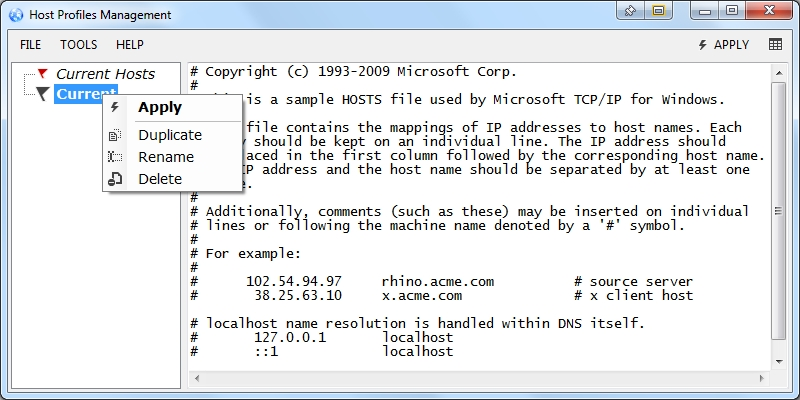
The main window lists all profiles.
Three actions worth knowing:
- New profile: creates an empty profile. Give it a meaningful name (
Dev,Prod,Block-trackers). - Edit: opens the inline editor; same syntax as a normal
hostsfile:
# Each line: <IP> <space> <hostname>  [comment after #]
127.0.0.1   myapp.local
192.168.1.50 staging-api.local
0.0.0.0 facebook.com # block- Apply (or double-click on the profile): overwrites
hostswith that profile’s content and flushes DNS.
The currently active profile stays highlighted. Switching is destructive against hosts: anything written there manually outside the active profile gets overwritten on the next apply.
Treat the active profile as the source of truth.
How I use it
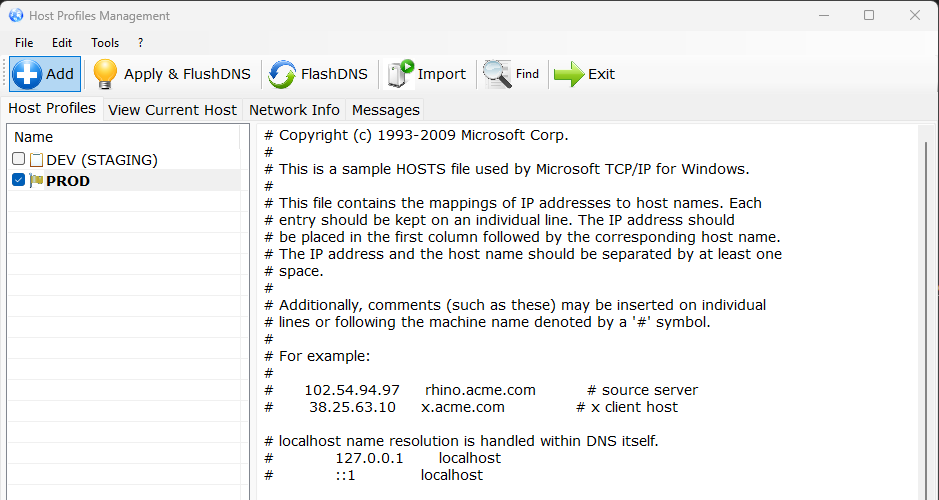 I keep it simple: I define a base profile that’s always loaded (e.g.
 PROD, that includes the lines Windows ships by default + my permanent custom mappings), and then I have other profiles that are based on different environments (e.g. TEST).
Another useful separation you can do is the following:
Default: empty / system defaults.DEV: base +127.0.0.1 myapp.local,127.0.0.1 api.local.Block: base + a list of distracting domains pointing to0.0.0.0.
Switching profile = switching environment in one click + DNS flush.
Things to know
-
The app does not merge profiles.
Apply one and the others are dormant, by design. If two contexts overlap you need a combined profile.
-
Running it un-elevated still lets you read/edit profiles, but applying silently fails. The status bar shows whether it has write access.
-
On Linux/macOS the equivalent tool is hostctl: different UX (CLI), same idea.