
This guide wires GitLab into AWX so that inventories, playbooks, roles and collections all live in versioned, reviewable Git repos.
Git becomes the single source of truth: AWX just mirrors it.
The model: one mechanism, two consumers
A Project in AWX = a Git repo, cloned and kept in sync.
Its a live link, not a one-time import.
Basically, we create one project per repo (some hold playbooks, some hold inventories) and link everything together to make it run.
flowchart LR
    subgraph GL["🦊 GitLab"]
        PB["playbooks/linux-hardening<br/>linux-hardening.yml<br/>+ collections/requirements.yml"]
        INV["inventories/prod<br/>openstack/openstack.yml + group_vars/"]
    end
    subgraph AWX["🎛️ AWX"]
        ProjPB["📚 Project (playbook)"]
        ProjINV["📚 Project (inventories)"]
        Src["🔗 Inventory Source"]
        Inv["📋 Inventory"]
        JT["▶️ Job Template<br/>Project + Playbook + Inventory"]
    end
    Target["🖥️ target hosts"]
    PB -- "git clone" --> ProjPB
    INV -- "git clone" --> ProjINV
    ProjINV --> Src
    Src -- "sync = import" --> Inv
    ProjPB --> JT
    Inv --> JT
    JT -- "run via execution node" --> Target
- Job Templates pick a playbook from inside a Project
- Inventory Sources pick an inventory file from a Project
- roles / collections come in through
requirements.yml, automatically on Project sync.
INFO
A green Sync Status: Success on an inventory, or a Job Template that just has a playbook dropdown, both mean the same thing underneath: a Project (Git) behind it.
1. GitLab: the repos
There are many other "layouts" you can use in GitLab....
For example, the “all-in-one” layout, one project with both playbook and inventory:
linux-hardening/ # project that contains both playbook and inventory ├── ansible.cfg ├── inventory.yml ├── group_vars/ │ └── hardened_servers.yml ├── linux-hardening.yml
Down below I show the layout I use, which separates inventories (per environment) from playbooks (per automation).
First we have to create the Groups:
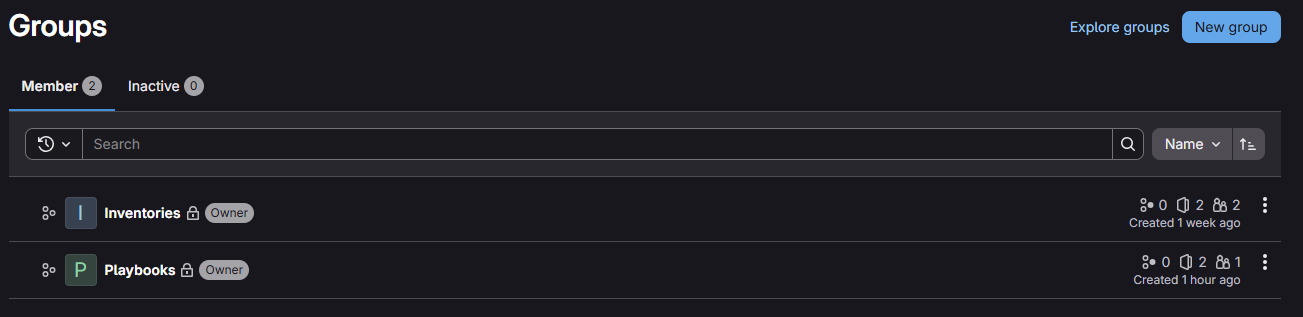
Inventories group: contains one project per environment (prod, test, dev…), and every project holds its inventory file + group_vars/ together:
inventories/prod          # inventories is the group, prod is the project (repo)
└── openstack/            # openstack is just a folder (one per machine type)
    ├── openstack.yml      # the inventory file
    └── group_vars/
        └── all.yml        # the group_vars
inventories/test
└── openstack/
...
IMPORTANT
Keep
group_vars/in the same folder as the inventory file, that’s how Ansible (and AWX’s import) auto-loads them. The group a playbook targets (e.g.hardened_servers) and its variables also live here, in the inventory — not in the playbook repo.
Playbooks group: contains one project per automation (LinuxHardening, UpgradeHost, JoinAD…). Each repo is flat: the playbook, its templates/, and its requirements.yml files sit at the repo root, for example:
playbooks/linux-hardening   # playbooks is the group, linux-hardening is the project (repo)
├── linux-hardening.yml      # the playbook
├── collections/
│   └── requirements.yml     # external collections
└── templates/               # jinja2 templates the playbook uses
playbooks/upgrade-host
├── upgrade.yml
├── roles/requirements.yml   # external roles (only if the playbook uses any)
└── collections/requirements.yml
...
requirements.yml must be at the repo root
On Project sync, AWX runs
ansible-galaxy installreading only the root-levelroles/requirements.ymlandcollections/requirements.yml.Files in subfolders are not picked up: that’s why each automation is its own repo with the requirements at its root (the playbook itself can sit in a subfolder, the requirements can’t).
2. GitLab: read-only SSH access (one credential for all repos)
AWX only needs to clone.
To do that, we can use a read-only service account with a dedicated SSH key, member of every group: this way one credential can clone every repo.
Procedure:
- Bot user: Admin → Users → New user →
svc-awx.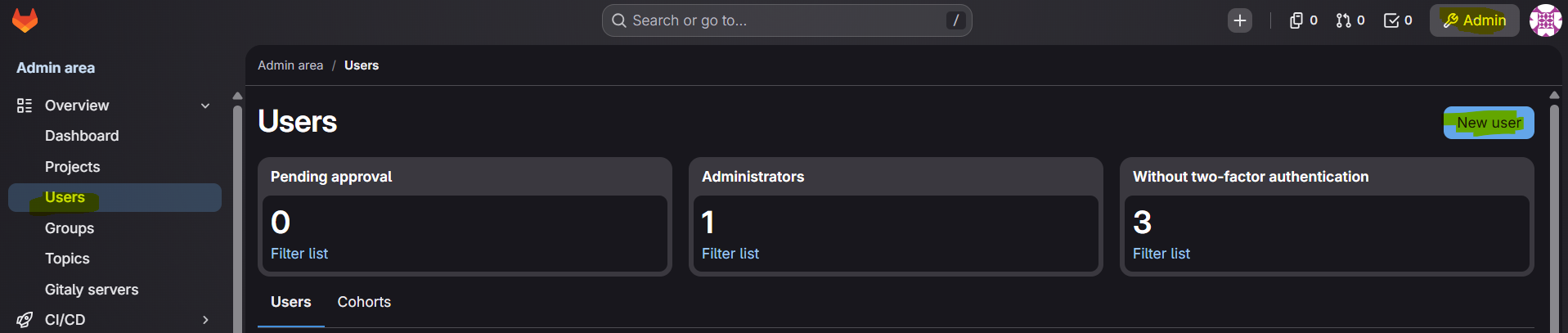
- Read access: each group (
inventories,Playbooks…) → Manage → Members → Invite →svc-awx→ role Reporter.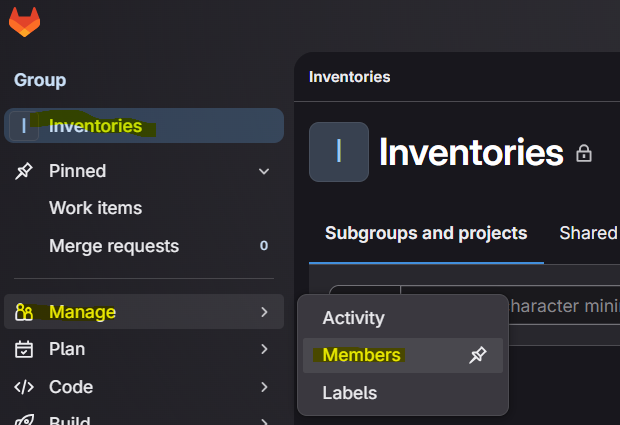
- Create a SSH key:
ssh-keygen -t ed25519 -f svc-awx -C svc-awx -N "" - Admin → Users →
svc-awx→ Impersonate → Preferences → SSH Keys → pastesvc-awx.pub→ Stop impersonation.
Lighter alternative: an SSH deploy key (per-repo)
Add the public key as a read-only Deploy key (Repo → Settings → Repository → Deploy keys, Grant write permissions OFF), and enable the same key on other repos. SSH too, just per-repo instead of group-wide.
Besides the key we just created for syncing projects and inventories, every target needs:
- A key for AWX to reach the targets via SSH (you select it later as a Machine credential when running the playbook): we set it up here. Recap: the public half goes in every target’s
~/.ssh/authorized_keys; the private half goes into the AWX Machine credential: AWX injects it into whichever execution node runs the job (it’s never stored on the nodes). - Every target allowing
:22from the execution node’s IP as source.
3. AWX: Source Control credential (SSH)
Resources → Credentials → Add
-
Credential Type:
Source Control -
SCM Private Key: the private
svc-awxkey -
Leave Username / Password / Passphrase empty (the user comes from the
git@URL).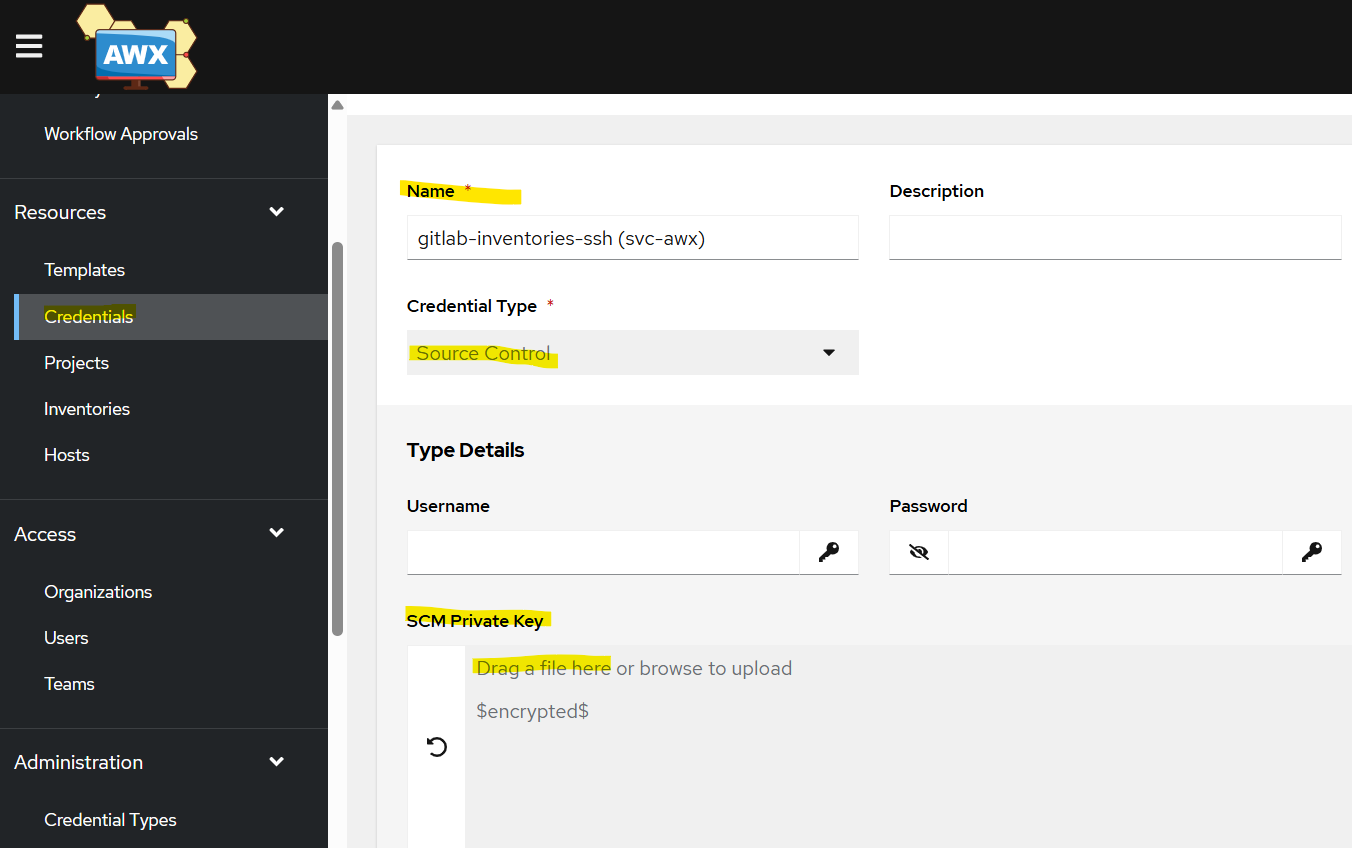
4. AWX: one Project per repo
As I said, we need to create a Project for each repo: same steps, different URL.
Resources → Projects → Add:
| Field | Playbook | Inventories |
|---|---|---|
| Name | LinuxHardening | Inventories |
| Source Control Type | Git | Git |
| Source Control URL | git@gitlab.yourdomain.com:playbooks/linux-hardening.git | git@gitlab.yourdomain.com:inventories/prod.git |
| Source Control Credential | svc-awx | svc-awx |
| Options | ✅ Update Revision on Launch | ✅ Update Revision on Launch |
For the Source Control URL, copy the exact SSH URL from the GitLab repo’s Code → Clone with SSH.
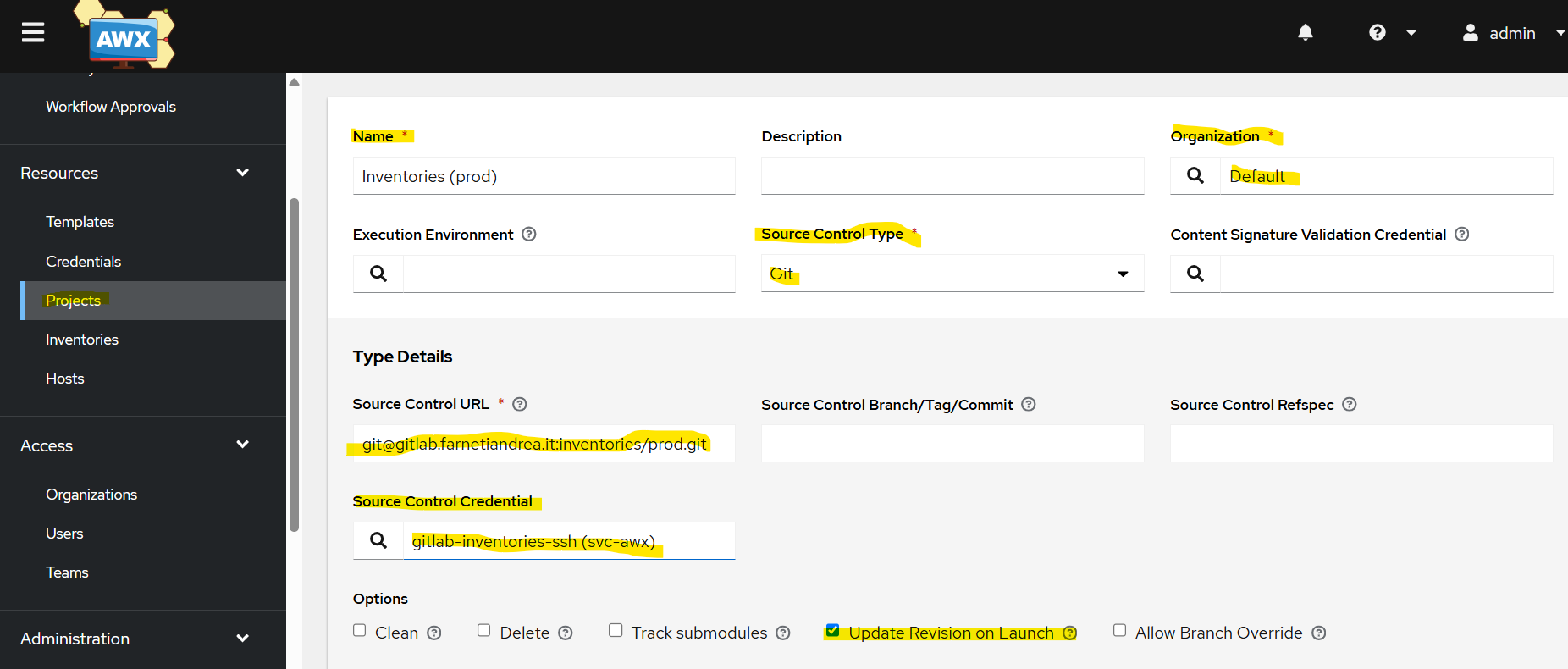
Save each, and wait for Successful. On the playbook project sync, check the log shows ansible-galaxy installing your collections: that confirms the root-level collections/requirements.yml was picked up.
Now AWX can see your inventories and playbooks… Let’s put them together!
- Inventories → an Inventory Source
- Playbooks → a Job Template
Inventories → Inventory + Source
Resources → Inventories → Add → Inventory → Name → Save (this is just an empty container for now).
Now open it: Sources tab (appears only after saving) → Add:
| Field | Value |
|---|---|
| Source | Sourced from a Project |
| Project | Inventories |
| Inventory file | openstack/openstack.yml (in this example) |
| Options | ✅ Update on launch · ✅ Overwrite · ✅ Overwrite variables |
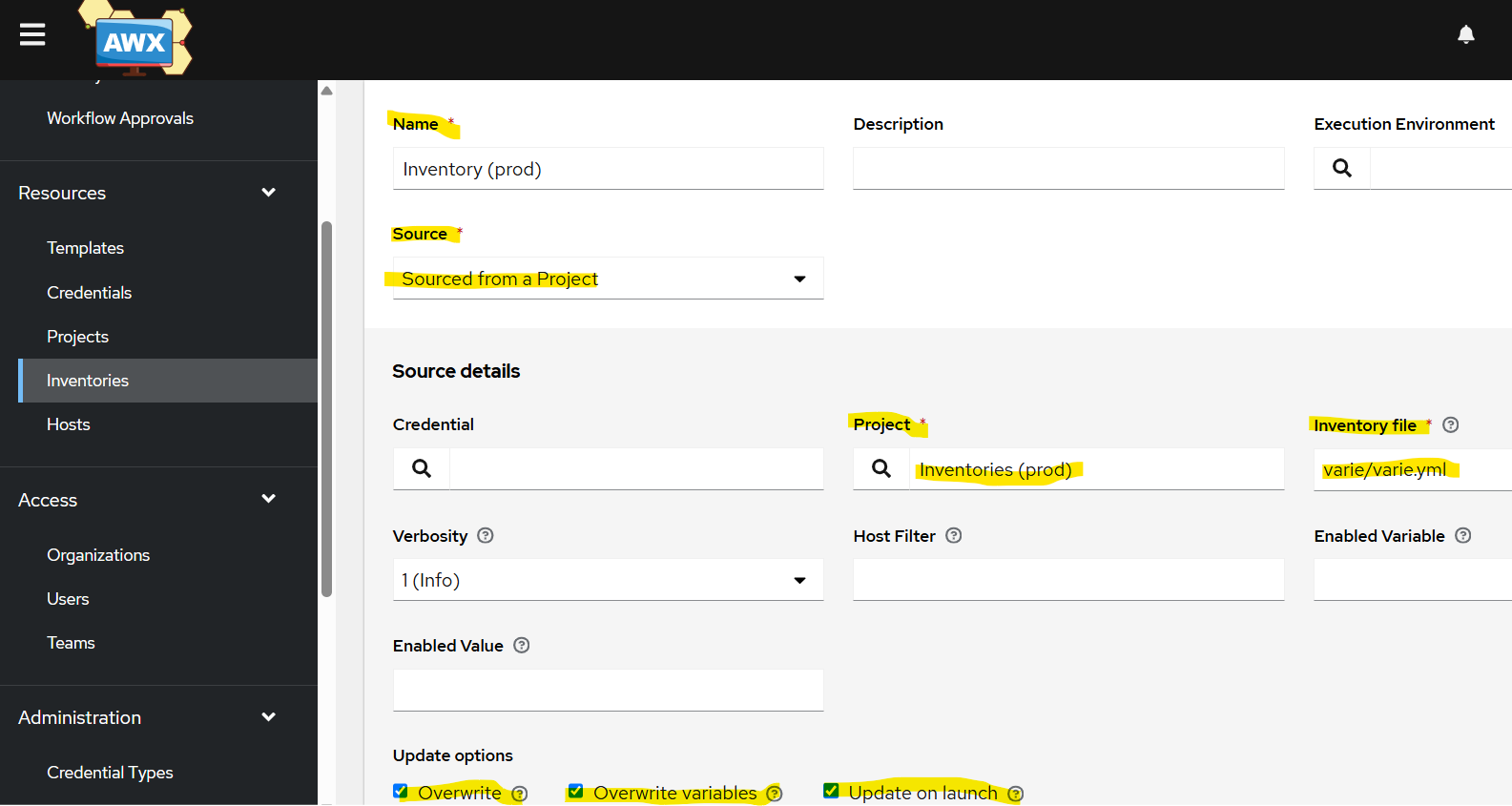 |
Save → Sync.
The "Inventory file" dropdown only shows
/ (project root)AWX auto-lists inventory files at the repo root: files in subfolders often aren’t suggested. The field is typeable: just type your inventory path (e.g.
openstack/openstack.yml) relative to the repo root.
NOTE
Variables from
group_vars/all.ymlare imported as inventory-level variables (Inventory → Variables), not onto each host — but they still apply to every host at runtime.
Playbooks → Job Template
This is the main use of a Project.
Resources → Templates → Add → Job Template:
| Field | Value |
|---|---|
| Name | e.g. LinuxHardening |
| Job Type | Check for a dry-run, then Run |
| Inventory | the inventory that holds the target group |
| Project | LinuxHardening |
| Playbook | linux-hardening.yml (dropdown; subfolders are listed too) |
| Execution Environment | leave default (it’s an image, not a machine) |
| Credentials | the Machine credential for the targets |
| Instance Groups | execution-vms (the execution node that SSHes to the target) |
Save → Launch.
Execution Environment ≠ Execution Node
Two similarly-named things:
- Execution Environment = the container image the job runs in → leave it on the default (
awx-ee). Don’t pick “Control Plane Execution Environment” (that’s the internal image for control-plane tasks).- Execution Node = the machine (VM) that runs the job and opens the SSH to the target → you choose it via Instance Groups →
execution-vms.
TIP
Run a dry-run first: set Job Type → Check (+ Show Changes for the diff), read the diff, then switch to Run. Essential for anything touching SSH / PAM / firewall.
Scaling out
Git stays the single source of truth, AWX mirrors it:
- Playbooks group → one repo per automation → one AWX Project each → its Job Template(s)
- inventories group → one repo per environment → AWX Project → many Inventory Sources (one per type:
openstack/,windows/…) - roles / collections →
requirements.ymlat each repo root → installed automatically on sync